Contents
- Index
Compress dialog box
Grouping
From version 3.0 ATPDraw supports real grouping or single icon replacement of sub-groups in an almost unlimited numbers of layers. The prosess is to first select a group and the click on Edit|Compress. The selected group content is then dispayed in the centre of the circuit window. The Compress dialog box appears where the user designs the new group object. The user can later modify the group content via Edit|Edit Group. A group object can be copied/imported as any other component and the content follows automatically.
From version 5 it is also possible to Recompress a group by selecting Edit|Compress. In this case a Keep Icon option is available instead of resetting to an auto-created icon. From version 5.5 more visual feedback is presented both in the Compress dialog and in the circuit window..
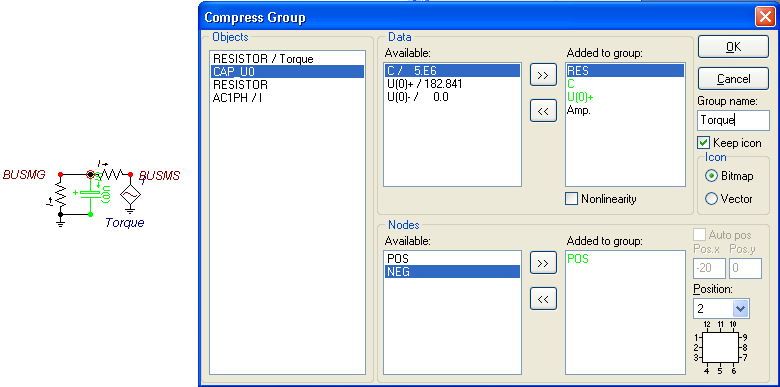
In the Compress dialog box the user can specify the external data and nodes of a group of components. The selected data and nodes appear as input in the group object that replaces selected group and their values are automatically transferred.
Under Objects all the components in the group are listed with their name (support file) followed by their Label (which is again specified in the Component dialog box). When you click on one of the components it's available data and nodes appears under Available listed by the data's/node's name followed by its value. The component is also drawn in a lime color in the circuit window. The already selected external data/node belonging to this component is also drawn with a lime color in the Added to groups.
You can then select the a parameter and click on the >> button to transfer it to the Added to list. Selected nodes in the Available node list is also draw in a lime color in the circuit window. If the data/node is already added the corresponding item in the Added to lists is highlighted, and you are not allowed to select it twice. Nodes in the Added to list are drawn enclosed by a red ring in the circuit window.
All data and nodes listed in the Added to group will be the external attribute of the new group object. You can also for each selected node specify it's position relative to the object's. From version 5 up to 32 nodes are supported, and node positions different from the default 1-12 must be specified by selecting position 0 and then give the relative coordinates of the node in Pos.x and Pos.y. The x-axis is oriented to the right and the y-axis downwards. The Auto pos button is only available for Vector graphic icons. Selected data and nodes can also be removed from the Added to group by clicking on the << button. As all other components the group object is limited to 64 data and 32 nodes. When later opening the component dialog box for the group object the selected data and node parameters will appear as input possibilities and the values will automatically be transferred to the sub-group.
It is also possible to change the data/node labels by double-clicking on the texts in Added to lists.
Important! Two or more data labels with the same name are treated as a single data in the component dialog box.
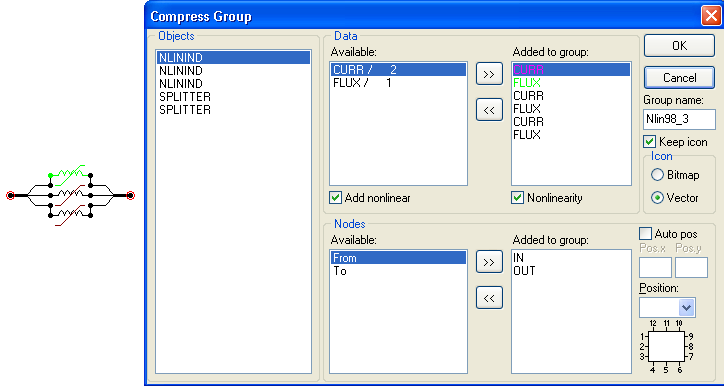
It is also possible to let non-linear characteristics become external data. This is done by checking Nonlinearity under Added to group. And then check Add nonlinear if available (possible to add maximum 3 characteristics). The selected characteristics will become a single external characteristic in the group object and thus forced to be equal in the final ATP data file. The example below shows how to create a 3-phase type 98 nonlinear inductor. The CURR and FLUX data parameters both appear three times, but they are shown only once in the component dialog box. The maximum number of points in the nonlinear characteristic is (64-6)/2=29 in this example, and 64 is the maximum number of data parameters in ATPDraw (from version 5).
The input dialog box of the compressed group component will display the selected external data and nodes. In addtion the name of the group is changeable. If a MODEL exists within a group the UseAsStr is brought out and is used to set the internal UseAsStr setting if this is empty. In this way a group with MODELS can be copied without concern of internal UseAsStr.